
Download Record Capture – Free Screen Capture & Recording Tool for Windows & macOS
Overview & Core Features
Record Capture is a lightweight yet powerful desktop application designed to make screen‑capture and screen‑recording effortless for Windows and macOS users. Whether you need a single screenshot for a quick reference or a full‑length video tutorial that shows every mouse click, Record Capture offers a clean interface that lets you capture exactly what you need without the clutter of unnecessary options. The app works directly from the system tray, so you can start a recording or take a screenshot with a single click, and it supports automatic saving to your preferred folder.
A notable advantage is its ability to record mouse movements, clicks, and cursor position, which is especially useful for creating instructional content or troubleshooting guides. The software respects privacy settings, meaning it will not capture content behind video‑or‑screenshot blockers, ensuring you stay compliant with DRM and protected media. With regular free updates, Record Capture remains secure and compatible with the latest OS releases, making it a reliable tool for professionals, educators, and casual users alike.
Feature List
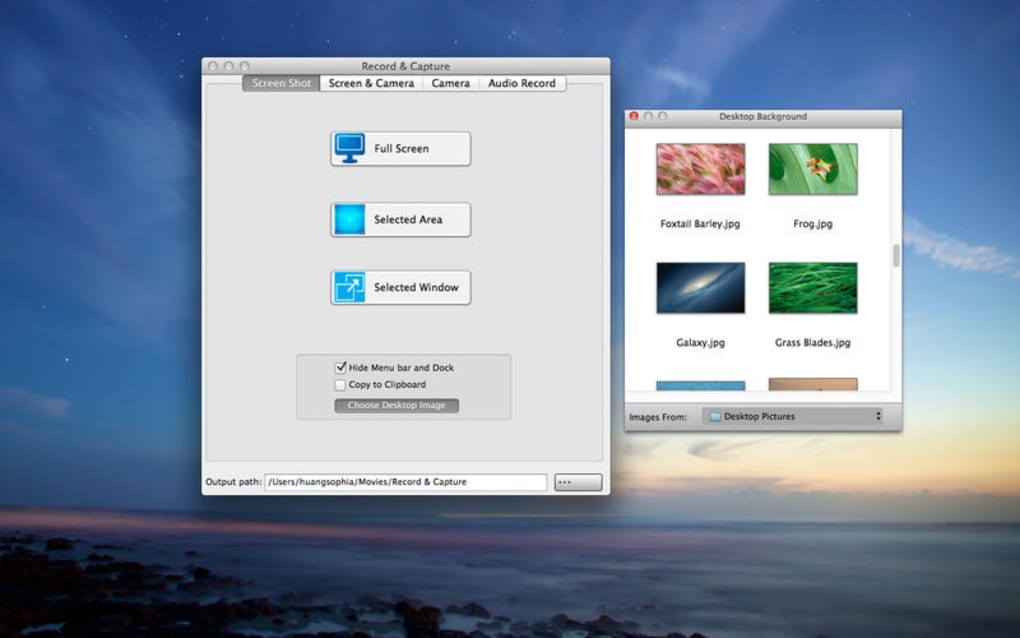
- Instant full‑screen, window, or custom area screenshots.
- High‑quality video recording up to 1080p with selectable frame rates.
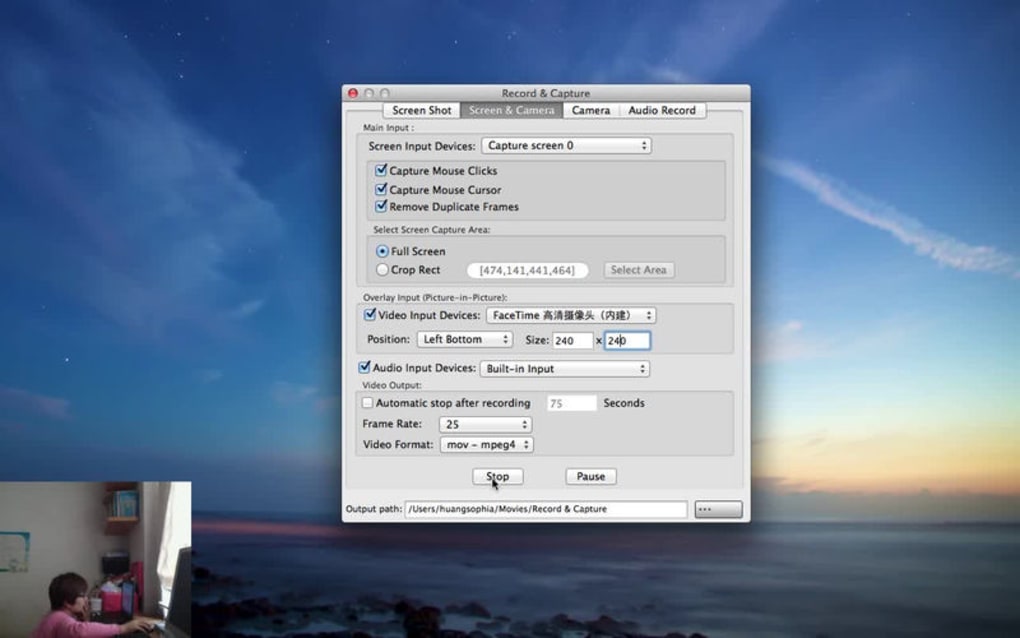
- Option to include mouse cursor and click highlights in recordings.
- One‑click start/stop from the system tray or hotkeys.
- Automatic file naming and organization by date and project.
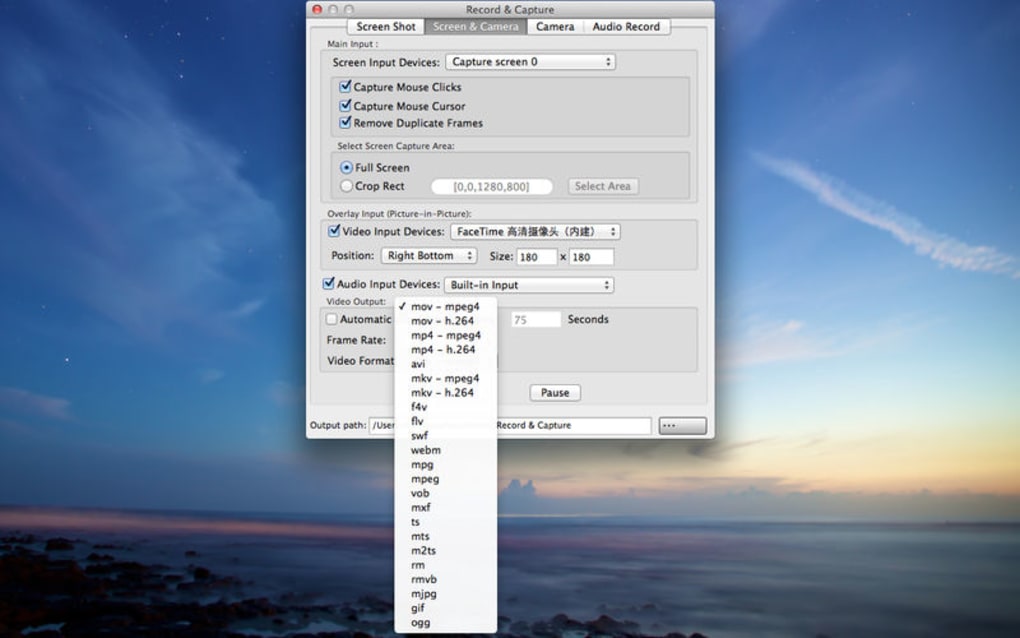
- Supports PNG, JPEG for images and MP4, AVI for videos.
- Built‑in basic editor for trimming video clips.
- Privacy‑aware capture – respects video/screenshot blockers.
- Free updates with bug fixes and new OS compatibility.
- Lightweight installer (< 5 MB) and minimal RAM footprint.
Installation, Usage & Compatibility
Getting Record Capture up and running is straightforward. Download the installer from the official website, which is hosted on a secure HTTPS server. The installer is a single executable for Windows (.exe) and a .dmg package for macOS. After launching the installer, follow the on‑screen prompts: accept the license agreement, choose an installation folder (default is C:\Program Files\RecordCapture on Windows or /Applications on macOS), and click “Install”. The process completes in under a minute, after which the application automatically adds an icon to the system tray (Windows) or menu bar (macOS).
Once installed, you can start a capture by right‑clicking the tray icon and selecting “Screenshot” or “Record”. For frequent users, the app lets you define custom hotkeys (e.g., Ctrl + Shift + S for screenshot, Ctrl + Shift + R for recording) via the Settings menu. When you choose “Record”, a small overlay appears, allowing you to select the capture area: full screen, a specific window, or a manually drawn rectangle. Tick the “Show cursor” and “Highlight clicks” options if you want these visual cues in the final video. Click “Start” to begin recording; a timer appears in the corner, and you can pause or stop at any time.
Record Capture is compatible with the following operating systems:
- Windows 10, Windows 11 (64‑bit)
- macOS 12 Monterey and later (Intel and Apple Silicon)
System requirements are modest: a dual‑core CPU, 2 GB RAM, and at least 100 MB of free disk space for the application itself (additional space is needed for saved captures). The software uses hardware‑accelerated encoding when available, which reduces CPU load during video capture. If your system meets the minimum specs, you can expect smooth performance even when recording high‑resolution video.
All captured files are saved to a default folder (Pictures\RecordCapture on Windows, ~/Movies/RecordCapture on macOS) but can be redirected in Settings. The app also integrates with cloud storage services like OneDrive and iCloud, allowing you to automatically sync your captures for easy sharing.
Pros & Cons
Pros
- Free to use with regular updates – no hidden fees.
- Simple, intuitive UI suitable for beginners and power users.
- Mouse cursor and click visualization improves tutorial clarity.
- Low system resource consumption compared with heavyweight editors.
- Supports both Windows and macOS, including Apple Silicon.
- Secure download source and no bundled adware.
Cons
- No built‑in advanced video editing (must use external editors for complex cuts).
- Limited output formats – primarily MP4 and AVI for video.
- No direct integration with popular streaming platforms (requires manual upload).
- Advanced features like scheduled recordings are absent.
- Help documentation is basic; community forums are limited.
Frequently Asked Questions
Can Record Capture capture games running in full‑screen mode?
Yes, the recorder can capture full‑screen applications, including games, as long as the game does not employ a DRM or anti‑capture technology that blocks screen recording. In such cases, the software respects the blocker and will not record the protected content.
Is there a limit to the length of a video recording?
There is no hard‑coded time limit; recordings continue until you manually stop them. However, extremely long recordings may produce very large file sizes, so it’s recommended to keep an eye on available disk space.
How do I enable mouse‑click highlights?
Open the Settings window, go to the “Recording” tab, and check “Highlight mouse clicks”. You can also choose the color and radius of the highlight for better visibility.
Can I change the default save folder?
Yes. In Settings → General, click “Browse” next to “Save location” and select any folder on your computer or an external drive. The change applies to both screenshots and video recordings.
Is Record Capture safe from malware and adware?
Absolutely. The official installer is digitally signed, distributed over HTTPS, and the software undergoes regular security audits. It does not bundle third‑party adware or unwanted toolbars.
Final Verdict & Call to Action
Record Capture strikes a solid balance between simplicity and functionality, making it an excellent choice for anyone who needs quick screenshots or reliable screen recordings without paying for premium suites. Its lightweight design, cross‑platform support, and mouse‑click visualization set it apart from other free tools that often sacrifice usability for features. While it lacks advanced editing capabilities, the core capture functions are robust, stable, and secure. For educators creating tutorials, developers documenting bugs, or remote workers needing to share visual feedback, Record Capture provides a hassle‑free solution.
Ready to streamline your visual communication? Download Record Capture now and start creating professional‑grade screenshots and recordings in seconds. Enjoy a free, secure, and regularly updated tool that respects your privacy and boosts productivity.







